Reading the results
The views rail, the data column, the link graph and the directory filter.
Opening a crawl
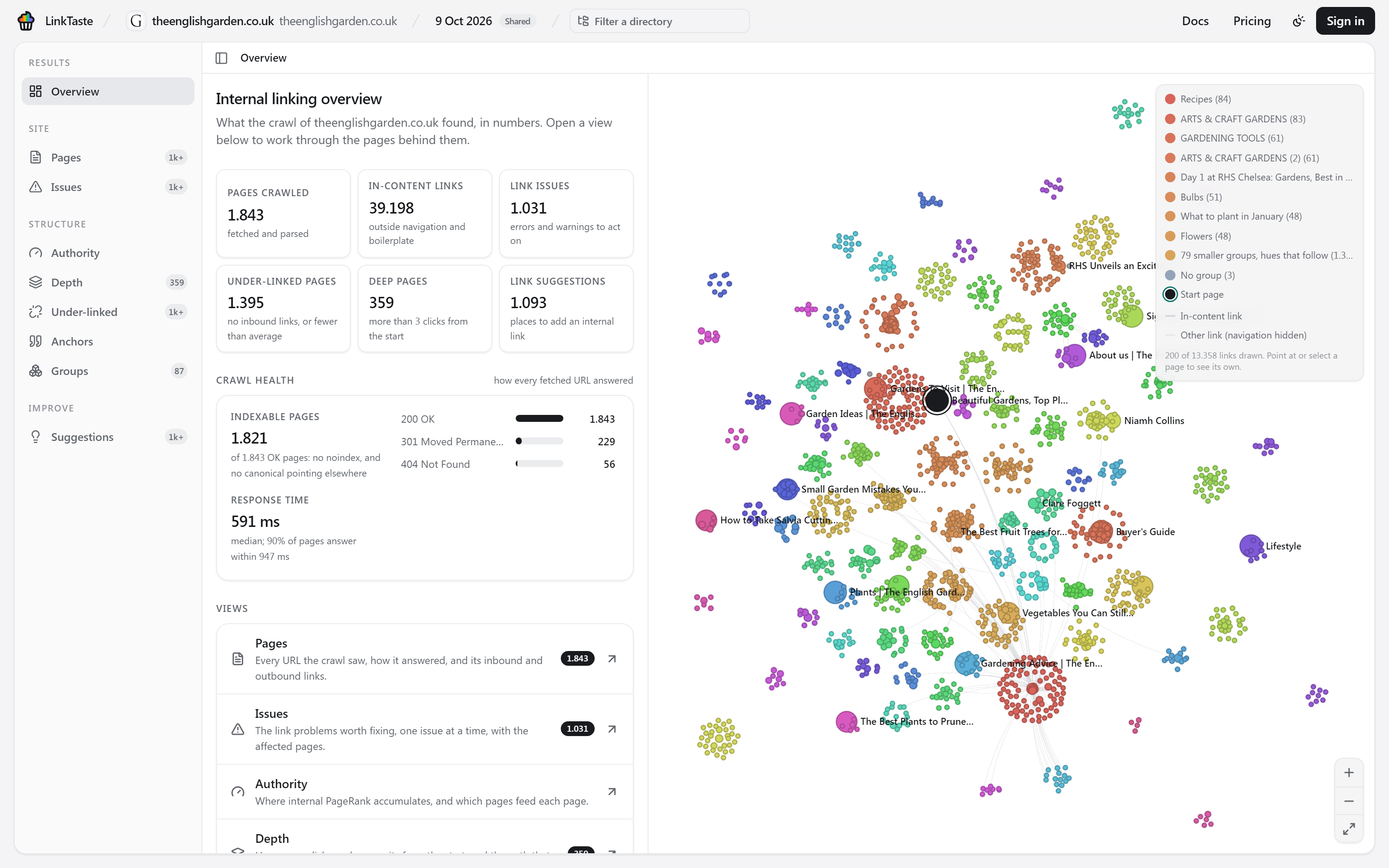
Open a finished crawl from its project page with Open results, or from the crawl history. The results fill one surface with three parts side by side: the views rail on the left, the data column in the middle and the link graph on the right.
The views rail
The rail lists the crawl's views under four headings. A badge on a view counts what waits there: pages, issues, suggestions.
- Results
- Overview
- Structure
- Authority, Depth, Under-linked, Anchors, Groups
- Improve
- Suggestions, Your links
When a view has filters or more than one list, they unfold under it in the rail while it is open: the issues found, the page statuses, the suggestion reasons. Point at a filter to read what it means. The button above the data column collapses the rail to a strip of icons, which gives the data and the graph more room.
The address in your browser follows what you open, so the back button steps through your views and a copied link opens the same view with the same filter.
The link graph
The graph draws every crawled page as a dot and the links between them as lines. It is not a separate view: it follows the view you have open and the row under your pointer.
- Size is the page's internal PageRank, relative to the strongest page.
- Colour depends on the view. Most views colour pages by topic; Depth shades them by clicks from the start, Under-linked marks the pages without enough links, Suggestions marks the pages that need one. The legend in the corner says what each colour means.
- Lines are darker for links in page content and lighter for other links. Links in the sitewide navigation are left out, since they would connect everything to everything.
- The start page carries a ring.
Drag to pan and scroll to zoom, or use the buttons in the corner (Fit to view brings the whole site back). Point at a page to see its path, title, inbound links and depth, and to draw only its own links. Pointing at a row in the data column rings the same page on the graph.
Click a page to select it: it and its direct neighbours stay bright, the rest fades, and a card shows its PageRank (out of 100, where the strongest page is 100), its inbound and outbound links and its depth. Open page details opens it in the Pages view. Click the background to clear the selection.
The divider between the data column and the graph can be dragged; the split is remembered in your browser. On a large site not every link is drawn at once; a note says how many are, and pointing at a page always shows all of its own.
The directory filter
The header of the results carries the project, the crawl, and Filter a directory. The filter narrows every view to part of the site at once: the counts, the lists, the issues, the suggestions and the exports. The graph keeps every page in place and fades what is outside the filter.
- Directories: type a directory such as
/blog/and press Enter, or pick one of the directories the crawl found. A directory includes everything under it. - Regex: a regular expression matched against each page's path, ignoring case.
Each term shows as a chip; click a chip to switch it between include and exclude. Included directories are added together, then excluded ones are taken back out. The filter shows how many pages it keeps; Clear removes it.
Switching project or crawl
The project and crawl names in the header are menus. The project menu opens another project at its latest finished crawl. The crawl menu lists the project's crawls with their date and page count and opens an older one; Project overview goes back to the project page.
Exporting a list
Most lists have a CSV button. The file holds every row of the list as you have it filtered and sorted, not only the rows on screen, and opens directly in Excel or Google Sheets. Exports are part of the paid plans; see Plans & limits.